Strategic Insights Generator
Turn Visa intelligence into actionable marketing insight.
AI Transformations
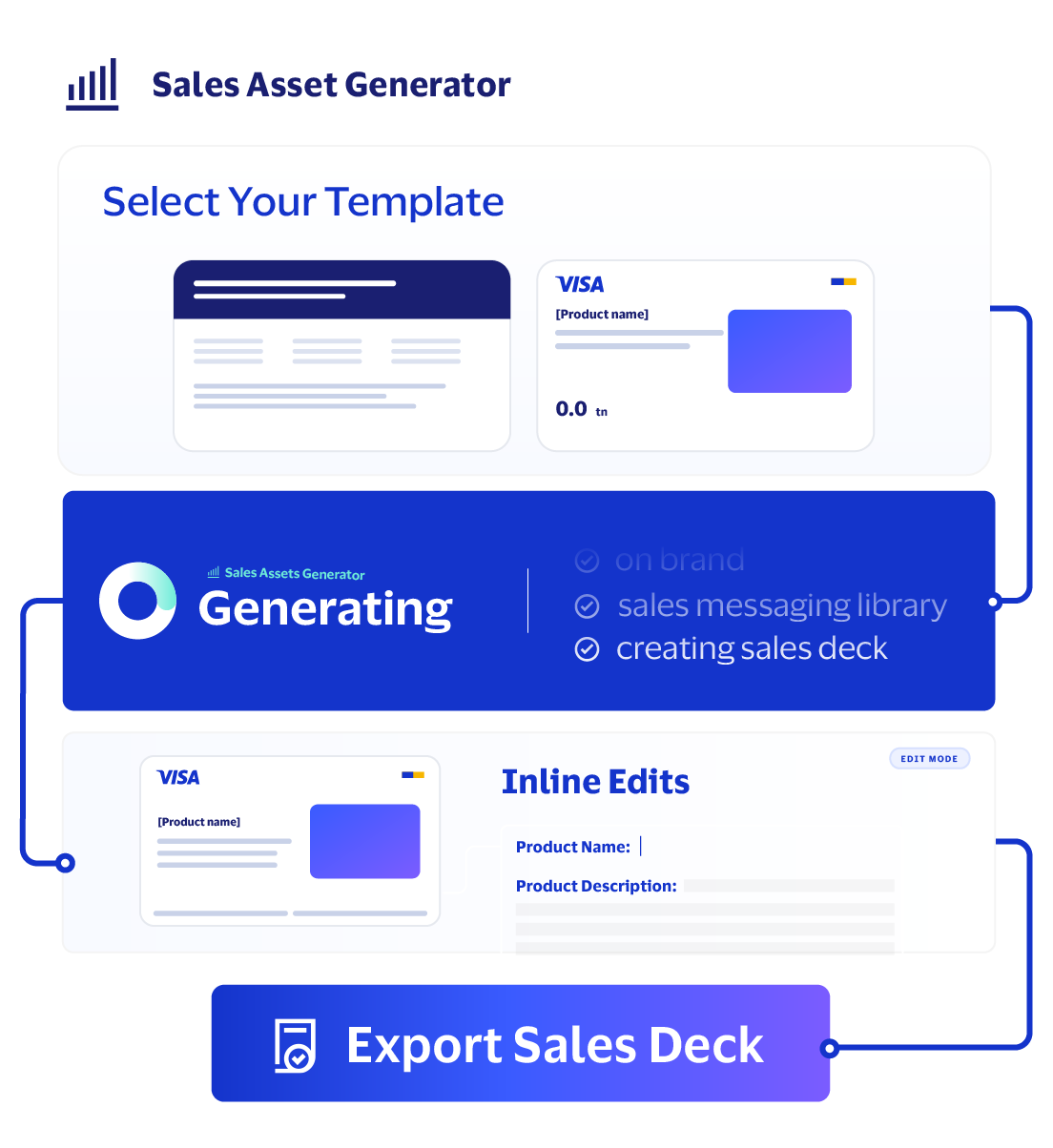
Get branded tear sheets and sales 101 deck synthesized on demand, backed by the Visa Product Catalog and Compass API.
Note: Must be on a network in a Visa office or on VPN.
Notice: This first release will continue improving based on marketer feedback.
Let us hear from you!How it helps you
Every asset is built with details from the Visa Product Catalog, Visa.com, Compass API and approved sources you can trace with View Source. So you can share materials with confidence faster.
Generate compelling materials from your product details fast.
View Source shows where each claim comes from.
Legal, brand and strategic review occur before external sharing.
Find the new Visa VIS ID here when available! Check back for an expanding library of templates.
How to get started
AI Quick Start Guides are designed to help you get the most out of our proprietary Visa AI products from the start. Come back whenever you need a refresher and see below for helpful FAQs.
AI Quick Start Guide
Sales Asset Generator
Roadmap
Asset templates built from AI best practices and Visa-approved formats
Tear sheets and sales deck Live
Integrated backend connection to sales and product knowledge sources Live
Expanded template library Coming soon
New Visa VIS ID look and feel Coming soon
Keep going
Turn Visa intelligence into actionable marketing insight.
Draft copy for digital channels.
Move from campaign idea to ready-to-review brief in minutes.
Turn client requirements into stronger RFP responses, faster.
FAQs
Sales Asset Generator is a draft-generation tool designed to accelerate creation of product tear sheets. Any externally shared tear sheets created using the Sales Asset Generator should complete any required review and approval workflow before distribution.
Users are responsible for:
Sales Asset Generator is a web-based internal application within Visa Marketing AI that helps Visa marketing team members create tear sheets, two-pagers, and Sales 101 decks for client-facing presentations, sales enablement and solution marketing. It uses large language models (LLMs) with Visa approved data sources to generate polished, consistent and up-to-date tear sheets in multiple output formats.
You can generate first-draft tear sheets, two-pagers and Sales 101 decks from structured product inputs, combine information from approved internal and public sources, edit content inline or refine it with AI, review source attribution, manage supporting documents and images, and export assets into PDF and PowerPoint formats.
Yes. The current release adds support for a two-pager template, along with updated HTML and prompt handling to improve generation for that format.
Yes. Sales Asset Generator can generate Sales 101 decks in a presentation-based output format. Sales 101 decks help introduce a Visa solution or product by providing an overview of its capabilities, value proposition, target audiences, differentiators and key sales messaging for internal education and field enablement.
The application is intended to help Visa Marketing team members quickly generate solution-specific, brand-compliant tear sheets, two-pagers and Sales 101 decks, reduce manual asset creation effort and ensure more consistent messaging across marketing materials.
Tear sheets are used in client-facing presentations and solution-marketing contexts. They help explain Visa solutions, capabilities and value propositions, and they support faster go-to-market execution and sales enablement.
Sales 101 decks are used for internal sales enablement, onboarding and product education. They help sellers, solution specialists and other stakeholders quickly understand a Visa solution's capabilities, value proposition, target audiences, differentiators and key sales messaging. Sales 101 decks support consistent storytelling and help teams communicate solution benefits more effectively across go-to-market activities.
Sales Asset Generator is intended to be accessed through the Visa Marketing AI Hub, subject to authorization controls. The latest release aligns authorization with LDAP-based access checks rather than relying only on roles or claims in the token.
An "access forbidden" message usually means your current account does not have the required authorization for the capability. Confirm that you are using the correct Visa account and check with the product or access-management owner if access should be enabled for you.
Open Sales Asset Generator, start a new asset request, select the desired output format (tear sheet, two-pager or Sales 101 deck), complete the intake form with product details and supporting context, generate the draft and share it for review and approval before publishing or external distribution.
Before starting, it helps to know the solution or product you want to highlight, the target audience, market context, capabilities, key selling points and any supporting materials you want to upload.
Users create an asset by selecting a Visa product or solution, choosing an output format, entering contextual inputs such as target audience, markets, capabilities, value propositions, and selling points and optionally uploading supporting documents. These inputs are used as prompt context for the LLM during content generation.
Typical inputs include the Visa solution or product, target audience, markets, supported capabilities, primary value propositions, key selling points and uploaded supporting documents.
Yes. No PII or sensitive data should be uploaded to the tool. Before uploading, make sure the material is appropriate, relevant to your business need, and compliant with Visa's data handling and content requirements.
Do upload:
Do not upload:
Before uploading any file, ask:
The application aggregates information from three primary sources: user-uploaded documents, Compass API and authorized public Visa domains.
Uploaded PDFs, documents and other reference materials are ingested and stored. Embeddings are generated and persisted in the database, so the application can semantically search them during tear sheet generation.
Compass API provides structured solution and product metadata and is used to fetch authoritative internal information for selected solutions.
The application can retrieve content from pre-approved Visa public domains only. This content is fetched through an LLM-powered web search tool and is restricted to authorized public Visa websites.
The current design assumes uploaded files are public files, and that no sensitive data will be uploaded. Similarly, data pulled from Compass API is expected to be external-approved public data.
If web search is unavailable, the application is expected to continue generation by using other available sources such as uploaded documents and Compass API content, rather than blocking the full consolidation workflow.
Generation happens in two major phases. First, the application aggregates context from uploaded documents, Compass API and authorized Visa domains. Second, the LLM generates content in HTML format, which serves as the canonical source for downstream outputs such as tear sheets, two-pagers and Sales 101 decks.
HTML is the canonical source format for generated tear sheet content and is used as the basis for downstream output formats.
The application supports two editing modes: Inline Edit and Refine with AI.
Both editing modes update the asset content while maintaining source attribution.
View Source lets users see which sections originated from which source.
Source attribution improves transparency, builds trust in AI-generated content and makes targeted editing easier.
Yes. Users can upload or replace images and add additional documents during creation and editing workflows.
Yes. A single upload API is intended to be used consistently across workflows.
Yes. Generated tear sheets, two-pagers and Sales 101 decks should be treated as drafts until required approval workflows are complete.
No. External sharing should only happen after the appropriate review and approval workflow has been completed.
Look for claims that are not clearly supported by cited sources. Always review AI outputs and sources. Users remain responsible for reviewing content and analysis.
Generated content is created in HTML and can be transformed into downstream document formats as part of the tear sheet, two-pager and Sales 101 deck workflows. Approved content can be exported into supported output formats, including PDF and PowerPoint, for review, distribution and presentation purposes.
Downloaded files can include the solution name, selected asset type (tear sheet, two-pager or Sales 101 deck) and a timestamp in the file name, making it easier to identify exported versions and distinguish between asset formats.
Update the input context with stronger product information and supporting material, then regenerate the draft, or you can manually edit.
Verify that the source inputs are strong and then use inline editing or refine with AI to improve the content before sending it through review and approval.
You can add additional documents or replace images during the editing workflow using the same upload process.
If an upload appears stuck, refresh and retry the upload. Larger files may take longer to ingest than smaller files. If delays continue, try again later or split the material into smaller files where practical. Documents are limited to a max size of 100 MB, and images are limited to a max size of 10 MB.
If a generation attempt fails unexpectedly, retry the request. Recent stability improvements were made to better handle server-sent event (SSE) interruptions, but retrying is still the fastest first step when the UI shows an abrupt stream failure.
Use the product's feedback mechanism if available and also share recurring issues or requests with the product lead or the documentation and enablement owner.
Start with strong, structured product inputs, use approved sources only, upload only public and authorized content, review source attribution carefully, use AI refinement when needed and treat each generated asset, whether a tear sheet, two-pager or Sales 101 deck, as part of a broader sales enablement workflow rather than a one-off draft.